When the Pocket Stock app has been used to add Barcodes to Stock Items and the data has been uploaded to Idealpos, it will be available for processing.
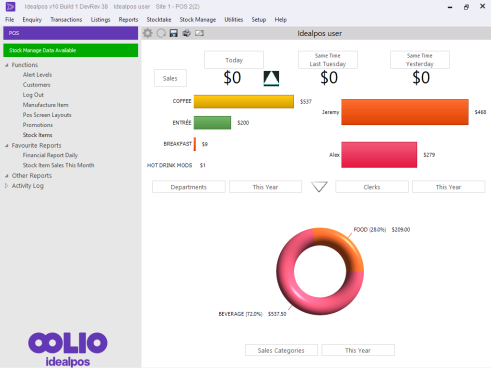
Idealpos will display a message on the Back Office that there is data available.
To access the Scan Code data uploaded by Pocket Stock, click on the "Stock Manage" menu at the top of the Back Office screen.
The type of data that is available to process will be designated by an icon beside the menu option, in this case, Process Scan Codes.

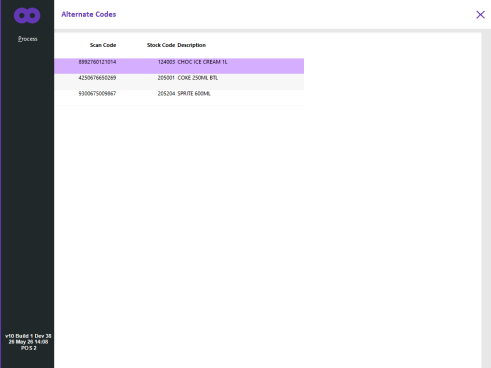
A new window will open showing you the details of the barcodes from the device.
Press the ‘Process’ button to send the details to the respective stock items.
Go to: Back Office > File > Stock Control > Stock Items > Select Stock Item.
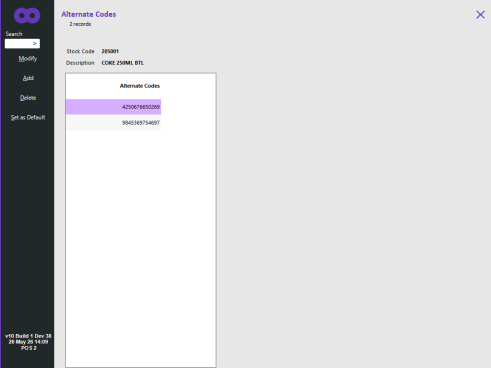
Press the Alternate Codes button on the left-hand side.
All the barcodes that were already attributed to that item, plus the new codes just entered will be displayed.